Add Depth to Video: How AI Puts the Missing Dimension Back Into Your Footage
|
5
min read
You don't need to reshoot. If your video looks flat — whether it's a travel film from last year, an animation you created, or archival footage you can't recreate — the missing dimension can be added after the fact. Your camera recorded light. AI can reconstruct depth.
Here's exactly how that works, and how to do it.
Two Ways to "Add Depth" to Video — Which Do You Need?
When people search for "how to add depth to video," they usually mean one of two very different things.
If You're About to Shoot: Depth of Field, Lighting, and Foreground Elements
If you haven't filmed yet, traditional cinematography techniques can build perceived depth into your shots: shoot with a wide aperture for shallow depth of field, position foreground elements in the frame, separate your subject from the background with distance and light, and layer your scene at multiple depths.
These are proven approaches. But they require planning before you press record — and they only apply to footage that hasn't been shot yet.
If Your Footage Is Already Filmed: AI Depth Addition
If your video already exists and looks flat, filming advice doesn't help. The footage was captured with a single lens, in a single moment, and the depth information was never recorded.
This is where a completely different solution applies. AI can analyze your footage frame by frame, estimate the depth of every pixel in the scene, and generate two separate eye views — creating stereoscopic 3D from footage that was never shot in 3D.
This isn't a filter. It's a reconstruction.
What Does "Adding Depth" to an Existing Video Actually Mean?
Adding depth to an existing video means using AI to reconstruct the stereoscopic information your camera never captured — generating separate left-eye and right-eye views from a single flat recording, and turning it into true 3D video that any VR headset or 3D display can play.
Your camera records light intensity for each pixel, but not distance. When you watch that footage, both your eyes see the identical image — there's no binocular disparity, so your brain receives no depth signal.
AI changes this by reading depth cues already present in the frame: perspective foreshortening, object scale, occlusion (what's in front of what), motion blur, and atmospheric haze. From these cues, it builds a depth map — a per-pixel estimate of how far each part of the scene sits from the camera.
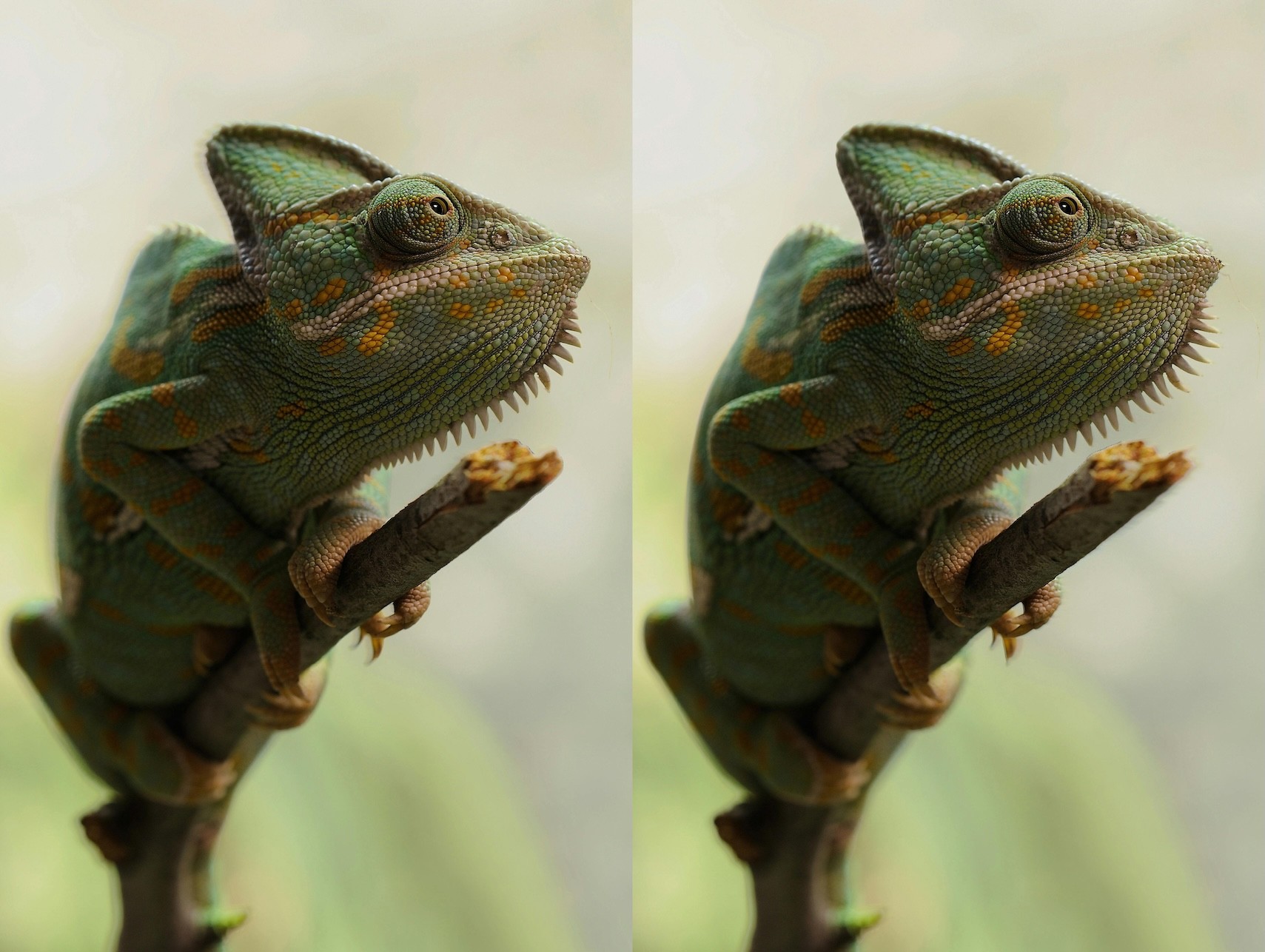
That depth map drives the generation of two slightly offset views, replicating how your left and right eyes would have seen the scene from their natural positions. A VR headset presents each view to the correct eye, and your brain fuses them into a single stereoscopic 3D image — the same mechanism as natural binocular vision.
The output is genuine 3D video, compatible with Apple Vision Pro, Meta Quest, 3D displays, and anaglyph glasses.
Real Depth vs. Fake Depth: Parallax, Depth of Field, and Stereoscopic Conversion Explained
Three techniques are commonly marketed as "adding depth" to video. Only one creates depth that actually works in a VR headset.
Parallax Animation (Ken Burns / Motion Parallax Effects)
Parallax animation layers image elements and shifts them at different speeds to simulate motion through a scene — the technique behind the Ken Burns effect and tools like DepthFlow, LeiaPix, and CapCut's depth effect.
On a flat screen, it looks compelling. The scene appears dimensional, foreground elements drift past the background, and the image feels alive.
But in a VR headset, the effect disappears entirely — because both eyes receive the identical 2D frames. Without any difference between the left-eye and right-eye view, there's no binocular disparity and no perceived depth.
Parallax animation creates the impression of depth on flat screens. It has zero stereoscopic effect in a VR headset.
Depth of Field Blur (Background Blur / Bokeh Simulation)
AI-powered background blur — now standard in video editors and smartphones — simulates the soft background you'd get from a wide-aperture lens. The subject stands out, the background softens, and the footage looks more cinematic.
It's a genuinely useful aesthetic tool. But like parallax, it adds no stereoscopic information. Both eyes still receive the same frame, just one where the background has been blurred. In a headset, the depth experience is unchanged.
Depth-of-field blur is a 2D aesthetic effect. It changes how your video looks — not what your eyes experience as depth.
AI Stereoscopic Conversion (True Depth Addition)
This is the process described in the previous section: monocular depth estimation builds a per-pixel depth map, which drives the generation of genuinely different left-eye and right-eye views. When a VR headset presents each view to the correct eye, your brain perceives real stereoscopic 3D.
The output is a standard stereoscopic video file — Side-by-Side, Top-Bottom, MV-HEVC, Anaglyph, or RGBD — ready for any compatible display.
Method | True 3D? | Works in VR Headset? | Works on Existing Footage? | Output |
|---|---|---|---|---|
Parallax Animation | ❌ | ❌ | ✅ | 2D video with motion effect |
DoF Blur | ❌ | ❌ | ✅ | 2D video with blur effect |
AI Stereoscopic Conversion | ✅ | ✅ | ✅ | Stereoscopic 3D (SBS, MV-HEVC, Anaglyph…) |
How to Add Depth to Video with Owl3D [Step-by-Step]
Owl3D is an AI-powered converter that adds genuine stereoscopic depth to any 2D video or photo. The process takes minutes for most content.
Step 1 — Upload Your Video or Photo
Upload any standard video file (MP4, MOV) or photo (JPG, PNG) at any resolution — 720p, 1080p, or 4K. There's no restriction on source age or origin: old films, animations, purchased footage, and archival clips all work.
Step 2 — Select Your AI Model
Three models are available:
Balanced Model — Best speed-to-quality ratio. The right starting point for most videos.
Precision Model — More 3D detail, longer processing time. Recommended for cinematic footage and complex scenes.
Ultra Model — Maximum depth detail. Best reserved for photos or key frames where processing time is acceptable.
Two settings give you additional control:
Augmentation — Runs multiple inference passes per frame to build richer, more layered depth. Use when maximum realism matters.
Temporal Stability — Smooths depth consistency across adjacent frames, preventing flickering on moving subjects. Recommended for all video content.
Step 3 — Adjust Depth and 3D Settings
Use the 3D pop-out strength slider to control how pronounced the stereo effect is. The depth range control adjusts the separation between foreground and background elements. Preview a short clip before exporting the full video — this saves time when calibrating the right settings for your content type.
Step 4 — Export in Your Target 3D Format
Choose the format that matches your target display or platform:
MV-HEVC — Apple Vision Pro's native immersive video format
Side-by-Side (SBS) — Meta Quest 2/3/Pro, most VR headsets, 3D-capable TVs
Top-Bottom — Alternative format for 3D TVs and projectors
Anaglyph — Red-cyan glasses; ideal for sharing without requiring a headset
RGBD — Depth-enhanced format for advanced post-production workflows
Add Depth to Photo Too — Same AI, Same Results
The same AI engine that adds depth to video works on photos. Upload any flat image — portrait, landscape, product shot, archival photograph — and Owl3D generates a stereoscopic 3D version ready for a VR headset or 3D display.
The process is identical: upload, select model (the Ultra Model is recommended for photos, since processing time is less critical for a single image), adjust settings, and export. Output formats are the same as video, including MV-HEVC for Apple Vision Pro, Side-by-Side for Meta Quest, and Anaglyph for glasses-based viewing.
Use cases include portrait photography, travel imagery, product photos for VR storefronts, and historic or archival images that have never existed in three dimensions.
Try Owl3D free on your first video
FAQs: Adding Depth to Video and Photo
Can I add depth to any video, regardless of format or resolution?
Yes. Owl3D works on standard video formats (MP4, MOV) at any resolution from 720p to 4K. The AI processes footage frame by frame regardless of source quality, though higher-resolution input produces higher-resolution stereoscopic output.
Does adding depth alter or damage my original video file?
No. Owl3D creates a new 3D output file. Your original footage is never modified. The process is entirely non-destructive.
What's the difference between "adding depth" and "3D conversion"?
They describe the same process. "Adding depth" refers to what happens — stereoscopic depth information is reconstructed and added to a flat recording. "3D conversion" describes the result — a file that plays as 3D on compatible displays. Both mean generating left-eye and right-eye views from a 2D source.
Will the depth look realistic, or like a cheap effect?
Quality depends on the AI model selected and the source footage. Owl3D's Precision and Ultra models use advanced depth estimation trained on diverse scene types, and Temporal Stability eliminates the flickering that made older 3D conversions look artificial. Results are significantly more realistic than legacy pixel-shift methods.
Can I add depth to old, low-resolution, or archival footage?
Yes. Monocular depth estimation reads spatial cues — perspective, scale, occlusion — that are present in any well-composed image regardless of age or resolution. Film grain and heavy compression artifacts may affect output quality slightly, but the AI will produce a usable depth map from virtually any 2D source.
Which VR headsets support Owl3D's output formats?
Apple Vision Pro (MV-HEVC), Meta Quest 2, 3, and Pro (Side-by-Side), most Android-based VR headsets (Side-by-Side or Top-Bottom), 3D TVs and projectors (Side-by-Side or Top-Bottom), and any display with red-cyan anaglyph support.